Welcome to Pantheon App
Get started with Pantheon App, your all-in-one platform for managing your agency's operations, teams, and client relationships.
Quick Start Guide
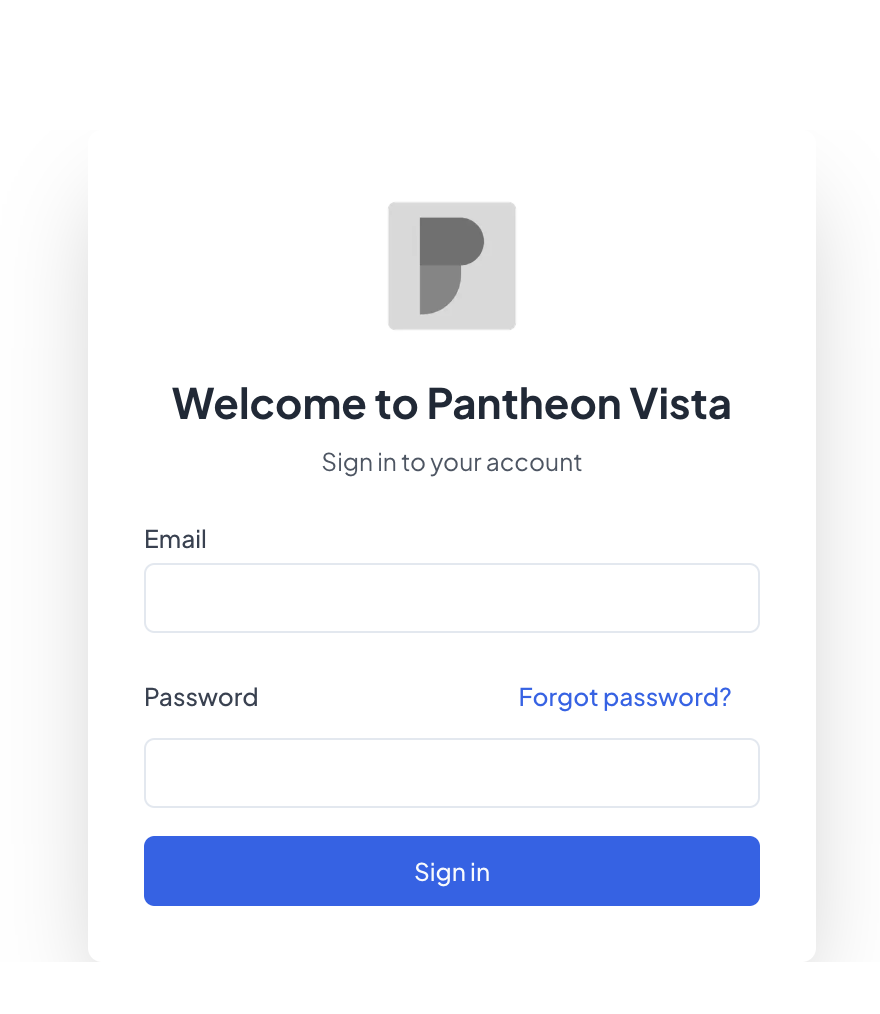
1. Signing In
Access Pantheon App through your web browser:
- Visit app.pantheonvista.com (opens in a new tab)
- Enter your email and password
- Click "Sign In"
2. Dashboard Overview
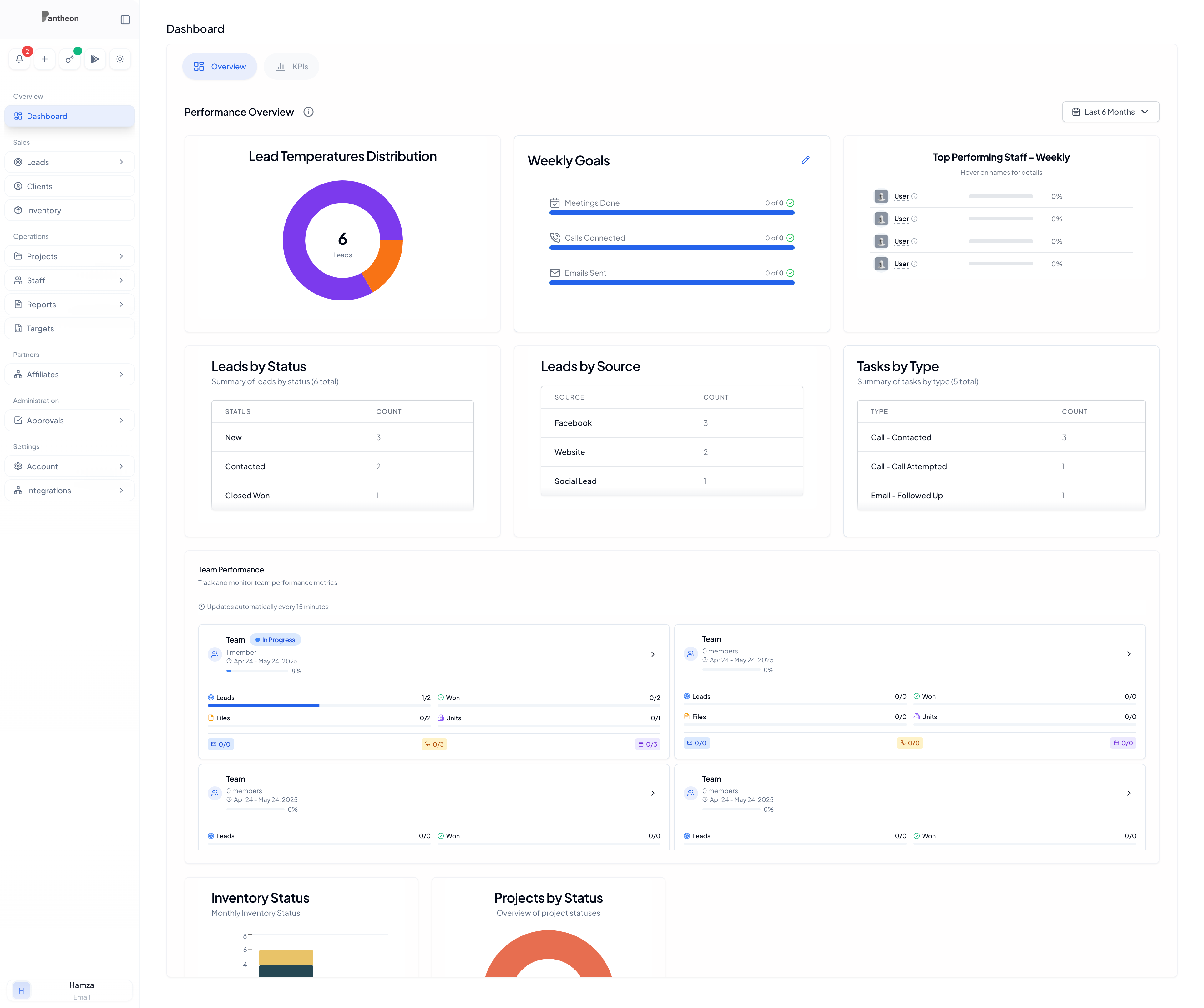
Your dashboard is designed to give you quick access to everything you need:
Left Sidebar
- Teams
- Clients
- Leads
- Projects
- Reports
- Settings
Top Navigation
- 🔔 Notifications
- ⚡ Quick Actions
- 📱 Mobile PIN
- 🌙 Dark/Light Mode
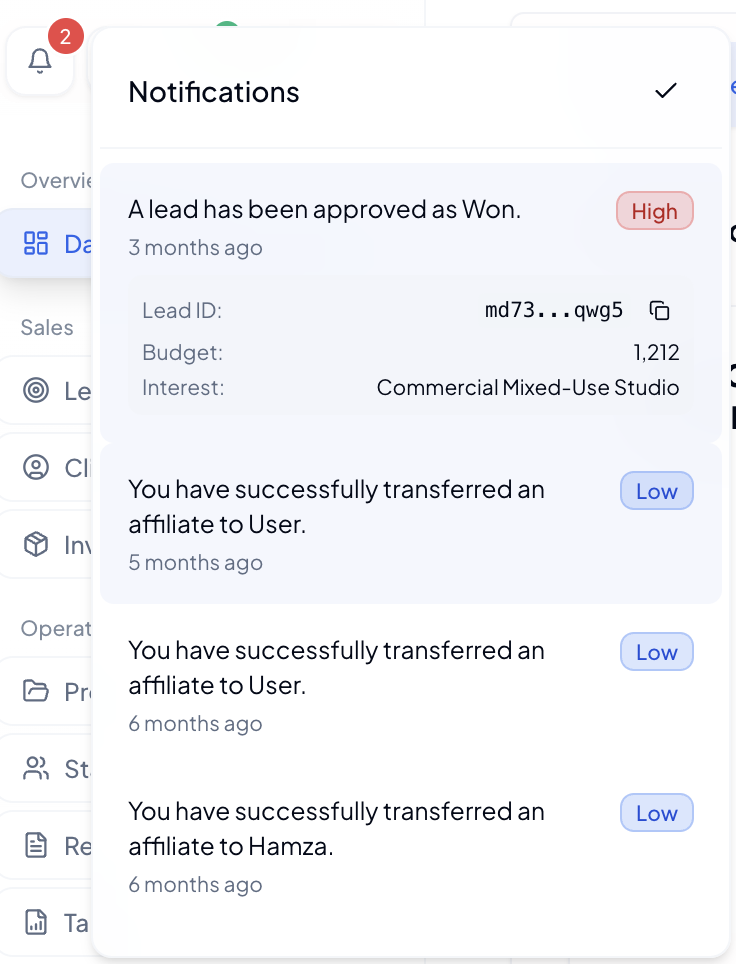
Stay Updated with Notifications
Your notification center keeps you informed about important updates:
Types of Notifications
- 🎯 New lead assignments
- 📊 Performance target updates
- 👥 Team activities
- 📅 Task reminders
- 📈 Goal achievements
Smart Notifications
- Real-time updates
- Priority-based alerts
- Click to take action
- Mark as read/unread
- Clear all option
3. Essential Features
For Team Members
- View your tasks and performance
- Track leads and clients
- Generate reports
- Manage your profile
For Team Managers
- Monitor team performance
- Manage team tasks
- Handle client relationships
- Track team goals
For Admins
- Manage team structures
- Handle agency settings
- Monitor overall performance
- Manage integrations
Getting Around
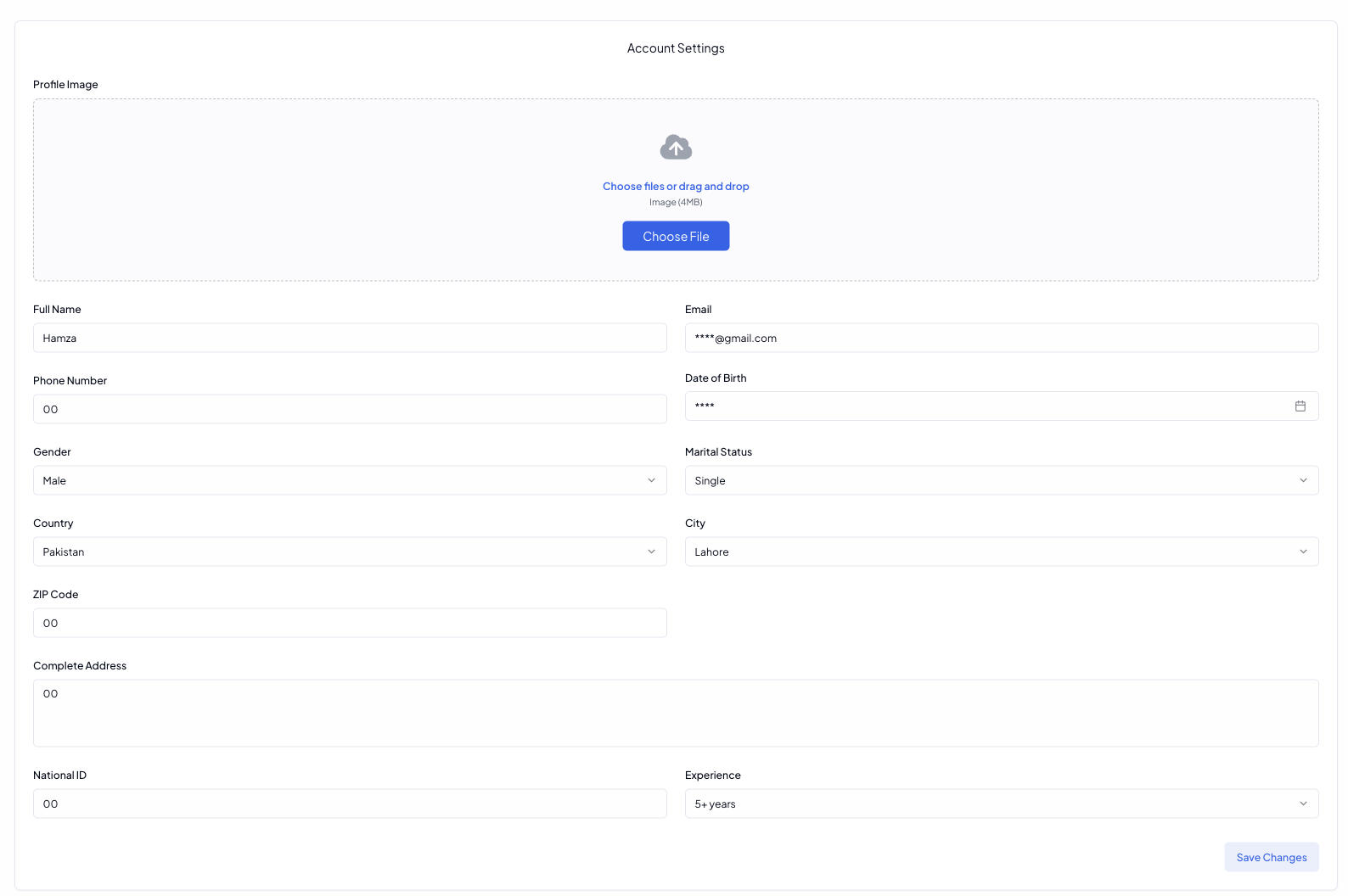
Profile Setup
- Click your profile picture in the top right
- Select "Account Settings"
- Complete your profile information:
- Personal details
- Contact information
- Profile picture (optional)
Mobile Access
- Get your Mobile PIN from the top navigation
- Download our mobile app
- Use your email and PIN to sign in
Tips & Tricks
💡 Pro Tips:
- Use the collapse button on the sidebar for more space

- Click the "+" button for quick actions
- Hover over icons for helpful tooltips
Need Help?
- Check the Features Guide for detailed information
- Explore Module Guides for specific features
- Contact your team manager for role-specific questions
Note: Screenshots are placeholders. Your actual interface may vary slightly based on your role and permissions.